Turn a photo into
pixel art.
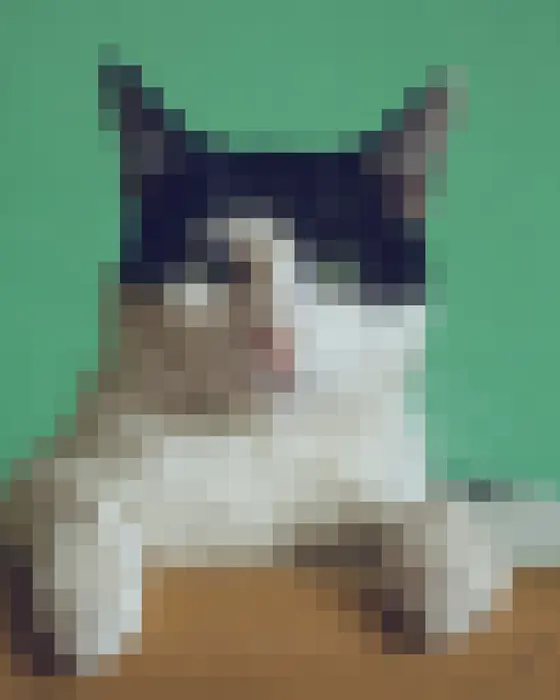
Drag one slider to go from photo to chunky 8-bit. Mosey averages the color of each block, and you can add gaps, round the pixels into dots, or switch on dithering for a retro game look.
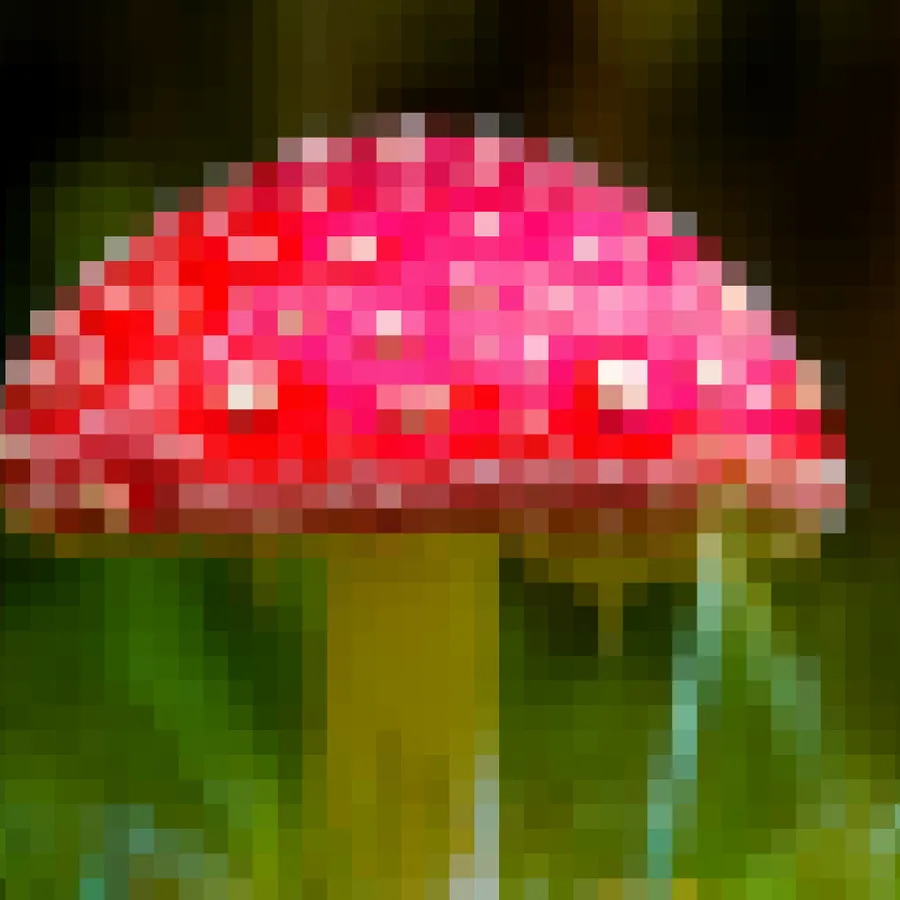
Try an example
Open one in the studio, look around, and hit Remix to make it your own.
How to make it
- Step 01
Upload a photo
Portraits, pets, landscapes and logos all work.
- Step 02
Set pixel size
Bigger pixels for bold 8-bit, smaller for a subtle mosaic effect.
- Step 03
Style it
Add spacing between pixels, swap squares for circles or hexagons, or try dithering and halftone layouts.
- Step 04
Export
Download a PNG, or an SVG where every pixel is a vector shape.
Every pixel is a tile
Simple pixelators shrink the image and enlarge it again. Mosey treats every pixel as a tile, so you can change its shape, spacing and layout: hexagonal pixels, round LED-style dots, or dithered patterns like classic handheld consoles.
Pixels in any shape
A pixel doesn't have to be a square. Switch the tile shape to circles for an LED-sign look, hexagons for a honeycomb, or stars and hearts for something playful. Add a gap between pixels to make each one distinct, and change the background color to set the mood.
The halftone layout turns pixels into dots that grow and shrink with brightness, like a comic book or newspaper print, and you can set the screen angle.
Dithering, the retro way
Old consoles and computers had only a few colors, so artists used dithering: patterns of dots that trick the eye into seeing in-between shades. Mosey's dithering layout offers four classic algorithms. Floyd–Steinberg gives a smooth, natural grain, Atkinson the high-contrast look of early Macs, Stucki a softer spread, and Bayer the ordered crosshatch of retro games.
Turn your photo into pixel art
Free to start, no signup, and it runs in your browser.
Tips for good pixel art
Simple subjects with strong outlines survive pixelation best, like a pet on a plain background, a logo or a game character. Crop close before you start so every pixel of the grid is spent on the subject. If the result looks muddy, try a bigger pixel size and more contrast rather than more detail.
Export as SVG
The SVG export gives you every pixel as a shape you can recolor and scale without blur, which is handy for stickers, cross-stitch charts, laser cutting and merch.
Turn pixel art into bricks or a 3D print
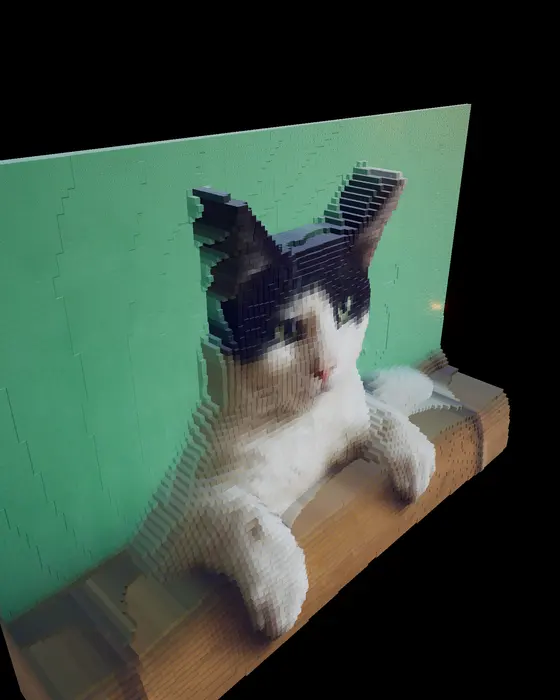
Pixel art translates well into physical builds. Switch to brick tiles to turn the same image into a buildable brick mosaic, or to 3D for a printable relief.
Pixel art FAQ
Is it free?
Yes. Pixel art and PNG or SVG downloads are unlimited, with no watermark.
Can I control the colors?
Colors are sampled from your photo. Use tint to push the palette toward a single color.
What dithering options are there?
Floyd–Steinberg, Atkinson, Stucki and Bayer. Each gives the same photo a different grain.
Can the pixels be round?
Yes. Switch the tile shape to circles, hexagons, stars or hearts, and add spacing to separate them.
Can I print pixel art large?
Yes. The SVG export is vector, so every pixel stays sharp at any size, from stickers to posters.
Your photo stays on your device while you make and export a mosaic. It only leaves if you click Save (stored privately in your account) or use an optional AI tool. Privacy Policy
More mosaic ideas
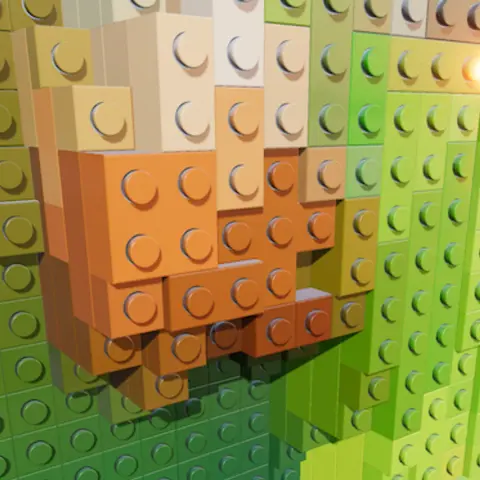
Brick mosaic
Your photo as a 3D brick mosaic, with an LDraw export for brick-building apps.
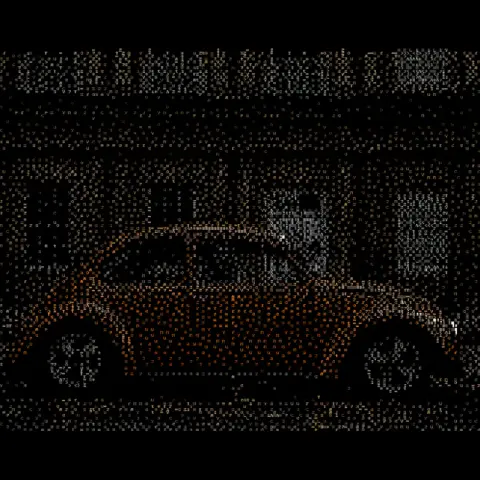
ASCII art
Every tile becomes a character chosen by brightness and tinted by color. Terminal-style art from any photo.
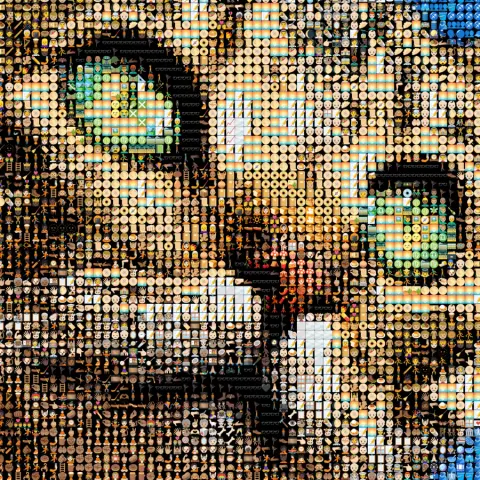
Emoji art
3,500+ emoji matched to your photo by color, updating as you edit.
More ideas: Photo mosaic · Photo to STL · Pet portrait · Anniversary & wedding · Memorial mosaic