Turn a photo into
a 3D print.
Upload a photo and Mosey turns it into a stylized 3D relief built from tiles. AI estimates the depth, so noses, paws and foreground objects come forward and the background falls away. Rotate it in your browser, then download an STL for your printer, or a GLB or USDZ model.
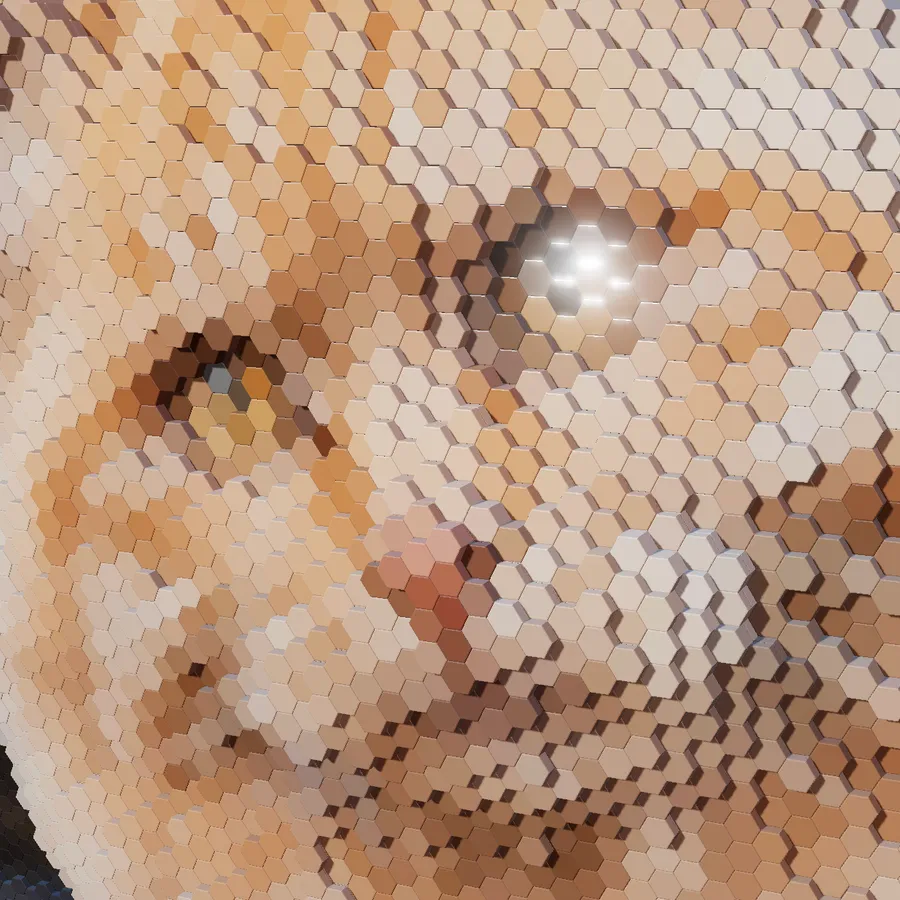
Try an example
Open one in the studio, look around, and hit Remix to make it your own.
How to make it
- Step 01
Upload a photo
Faces, pets and objects with a clear foreground work best.
- Step 02
Generate a depth map
One AI credit estimates depth for the whole photo. New accounts get 3 free credits.
- Step 03
Shape the model
Choose square, hexagon, brick or round tiles, set the tile size, and adjust how much detail the surface keeps.
- Step 04
Export for printing
Download an STL for any slicer, a GLB for Blender and other 3D tools, or a USDZ to view it in AR on iPhone.
How the height is worked out
Simple image-to-STL converters turn brightness into height, so a dark shirt becomes a pit and a bright forehead becomes a spike. Mosey uses an AI depth map instead, so height follows the actual shape of the scene.
Each tile stacks to its depth, giving a stepped surface. The result is a stylized relief rather than a smooth sculpt, so it still looks like a mosaic in your hand.
Stepped or extruded
Shell mode stacks each tile in steps up to its height, giving a terraced surface. Extruded mode stretches each tile into a single column instead, which prints cleanly and looks like a pin-art toy. A detail control sets how much of the surface's shape is kept.
Shapes and styles
Square columns give a city-skyline look, hexagons a honeycomb, circles a field of pins, and brick tiles a stud-topped relief you could build. Presets like Terrain, Voronoi 3D and Sphere Stack are good starting points. Load one, drop in your photo and adjust from there.
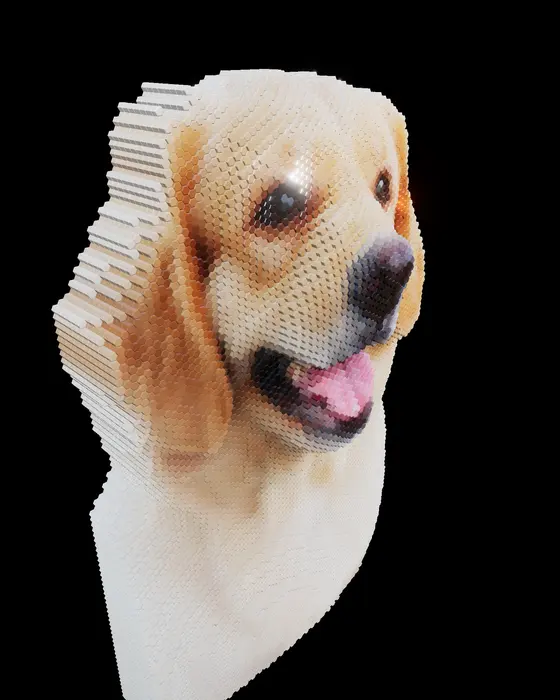
Turn your photo into a 3D print
Free to start, no signup, and it runs in your browser.
Tips for printing the STL
Larger tiles print faster and look bolder. Smaller tiles hold more detail. Scale the STL in your slicer to the size you want. For color, paint the print or use a multi-material printer with the GLB colors as a guide.
STL, GLB and USDZ files
The STL is a binary mesh of the whole relief that any slicer can open and scale. STL files carry shape only, not color. For a color reference when painting or printing in multiple materials, export a GLB alongside it, which keeps every tile's color.
Other ways to use the model
Export a PNG render of the lit 3D scene, or a USDZ to place the relief on your table in AR.
Photo to STL FAQ
Do I need AI credits?
Yes. The depth map uses one AI credit per photo. Every new account gets 3 free credits, and packs are available without a subscription.
Is the STL export free?
Yes. STL, GLB and USDZ exports are free.
Which 3D printers does it work with?
The STL opens in any slicer, including Cura, PrusaSlicer and Bambu Studio.
Does the STL include color?
No. The STL format stores shape only. Export a GLB as well for the colors, whether for painting or multi-material printing.
What size will it print?
Any size you like. Scale the STL in your slicer. Larger tiles print faster and hold up better at small sizes.
Can I use a photo without a clear foreground?
It'll work, but depth looks best when there's an obvious subject in front of a background, such as a face, a pet or a figurine. Flat scenes give flat reliefs.
Your photo stays on your device while you edit and export. The depth map is the exception: a compressed copy goes to our AI partner, fal.ai, and is deleted within 30 seconds. If you click Save, it's stored privately in your account. Privacy Policy
More mosaic ideas
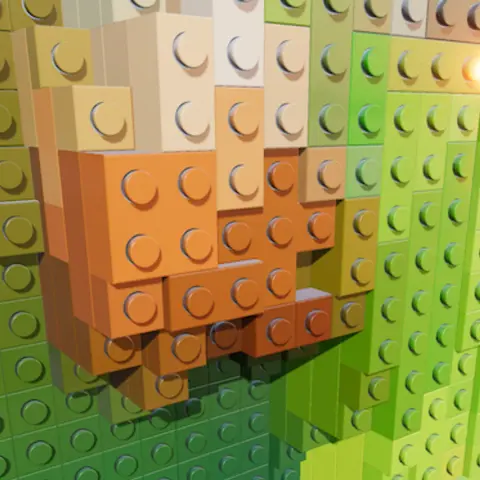
Brick mosaic
Your photo as a 3D brick mosaic, with an LDraw export for brick-building apps.
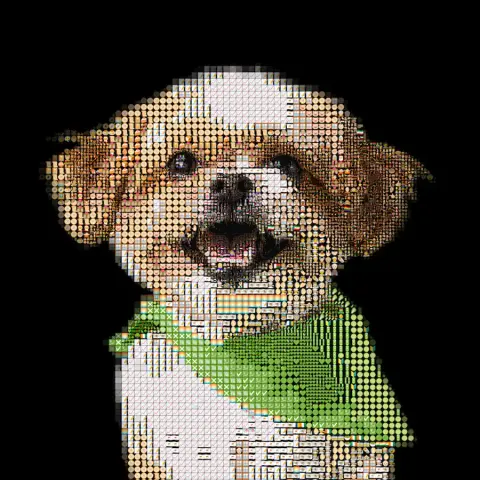
Pet portrait
Your dog, cat or rabbit rebuilt from emoji, bricks or their own photos, ready to print or build.
Pixel art
Drag one slider from photo to chunky 8-bit, then add gaps, round dots or dithering.
More ideas: Emoji art · ASCII art · Photo mosaic · Anniversary & wedding · Memorial mosaic