Turn a photo into
ASCII art.
Mosey maps every region of your photo to a text character: dense glyphs like @ and # for dark areas, light ones like . and : for highlights. It can also color each character from the photo. Choose which characters to use and the picture redraws as you go.
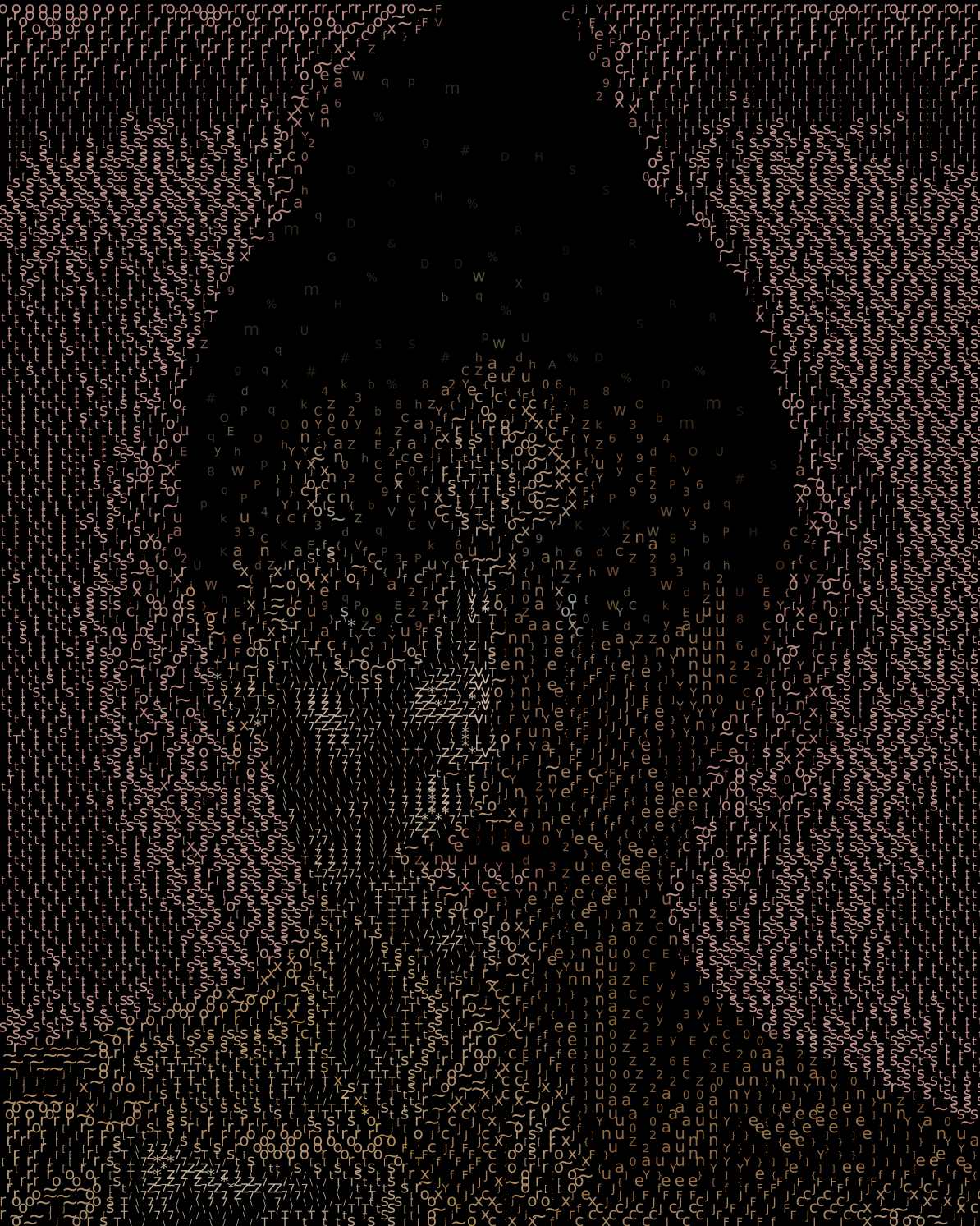
Try an example
Open one in the studio, look around, and hit Remix to make it your own.
How to make it
- Step 01
Upload an image
Portraits, logos and high-contrast photos convert best.
- Step 02
Choose characters
Use the full printable ASCII set, or switch characters off to narrow it down to digits, symbols, or just 0 and 1.
- Step 03
Tune size and spacing
Smaller characters give more detail. Wider spacing gives a cleaner terminal look.
- Step 04
Export
Download a PNG, or an editable SVG where every character is real, selectable text.
How the characters are chosen
Each character is drawn in the VT323 terminal font and measured for how much of its cell it fills. A period fills very little, and an @ fills a lot. Mosey measures the brightness of each part of your photo and places the character with the closest fill, so the picture comes from the texture of the text itself.
Color ASCII, or classic monochrome
Classic ASCII art uses brightness only. Leave tint on and each character takes the color of its part of the photo, which keeps a face recognizable even at small sizes. Switch tint off for classic monochrome, or pick a custom color: green on black for a retro terminal, black on white for print.
Choose your characters
Switch characters on and off to change the texture: keep only 0 and 1 for a data-art look, only punctuation for something light and airy, or only letters for something denser. Mosey sorts whatever you keep from lightest to darkest, so the picture still reads.
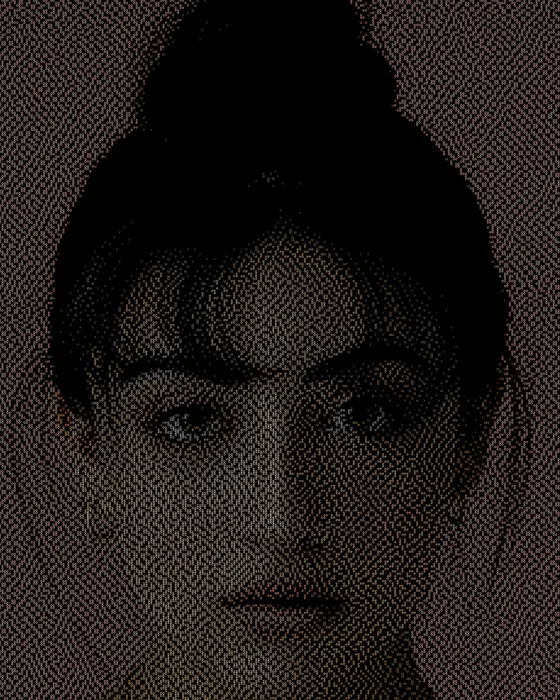
Turn your photo into ASCII art
Free to start, no signup, and it runs in your browser.
Choosing a photo for ASCII art
Text characters are small and similar in shape, so strong light and dark contrast matters. Raise the contrast before uploading, remove busy backgrounds, and prefer faces lit from one side. Logos and silhouettes convert very cleanly.
Layouts for different textures
The square grid gives the classic text-art look. Try the dithering layout for a grainy, printed feel, or halftone for a newspaper-print pattern. ASCII works with every layout, so try a few on the same image.
Where to use ASCII art
ASCII portraits suit profile pictures, README and website headers, zine illustrations, posters and t-shirt prints. The SVG export embeds the font, so the characters look the same wherever the file is opened, and they stay sharp at any print size.
ASCII art FAQ
Is this ASCII art converter free?
Yes. Converting and downloading PNG or SVG files is free, with no watermark.
Can I get the ASCII as text?
The SVG export contains every character as real text you can edit in Figma, Illustrator or Inkscape.
Can I choose which characters are used?
Yes. Switch any of the printable ASCII characters on or off, and Mosey orders the ones you keep by visual density automatically.
Is there a plain .txt export?
Not at the moment. The SVG export contains every character as real text, and the PNG export is best for sharing.
Which font does it use?
VT323, a free terminal-style font. It's embedded in the SVG, so the file looks right without installing anything.
Can I make monochrome ASCII art?
Yes. Switch tint off for characters in a single color, or pick a custom color and background.
Your photo stays on your device while you make and export a mosaic. It only leaves if you click Save (stored privately in your account) or use an optional AI tool. Privacy Policy
More mosaic ideas
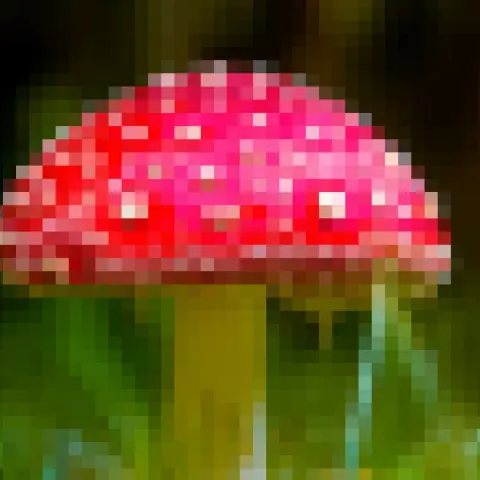
Pixel art
Drag one slider from photo to chunky 8-bit, then add gaps, round dots or dithering.
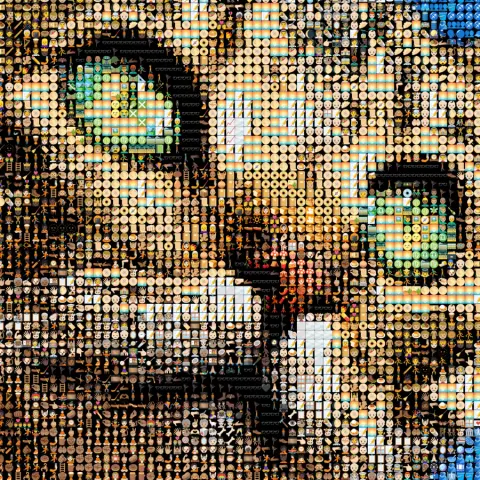
Emoji art
3,500+ emoji matched to your photo by color, updating as you edit.
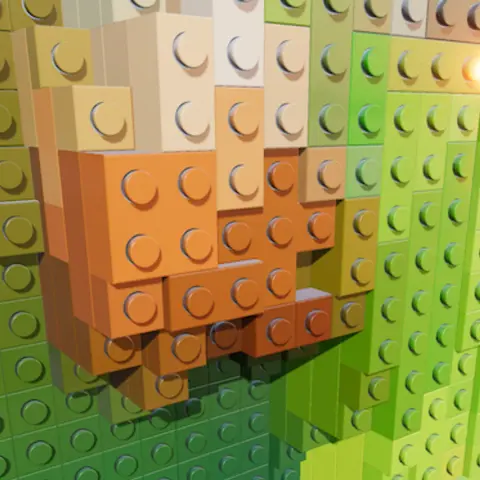
Brick mosaic
Your photo as a 3D brick mosaic, with an LDraw export for brick-building apps.
More ideas: Photo mosaic · Photo to STL · Pet portrait · Anniversary & wedding · Memorial mosaic