Turn a photo into
a brick mosaic.
Upload a photo and Mosey rebuilds it from brick pieces (plates, bricks and corners). Preview it in 3D right in your browser, then export it as an LDraw file to build for real, a 3D model or a high-res image.
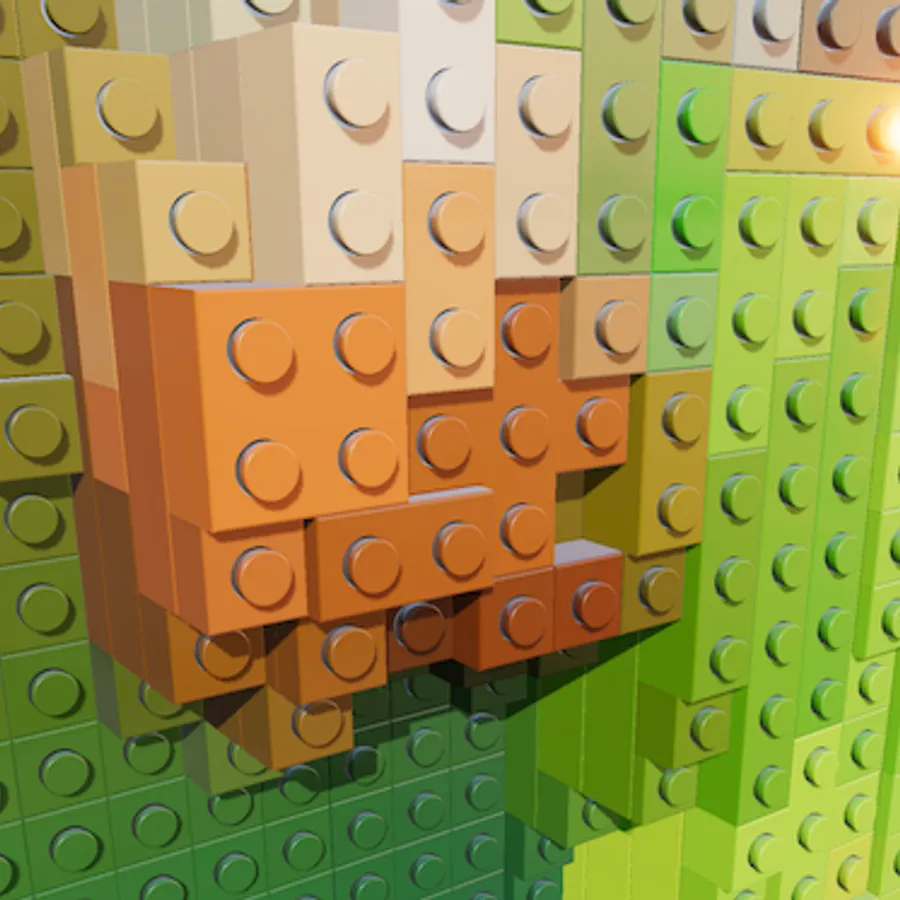
Try an example
Open one in the studio, look around, and hit Remix to make it your own.
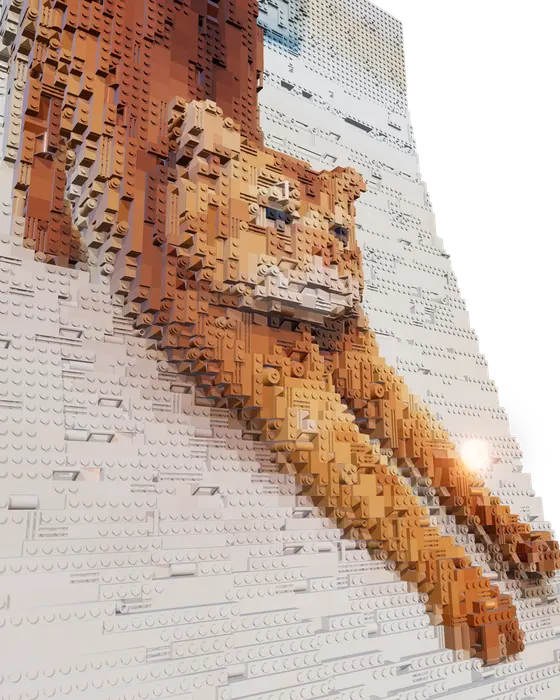
How to make it
- Step 01
Upload a photo
Pick a clear photo with one main subject, such as a face, a pet or a logo. Drop it in, or choose one from the photo library.
- Step 02
Choose your size
Tile size sets how many studs fit across the photo. Bigger tiles look bold and blocky. Smaller tiles keep the eyes and edges but use more pieces.
- Step 03
Rotate and inspect
The mosaic renders as 3D bricks. Rotate, zoom and pan to check it from every angle.
- Step 04
Export it
Download an LDraw (.ldr) file for brick-building apps, an STL for 3D printing, a GLB or USDZ model, or a PNG to print.
Built from 3D brick parts
Many "brick effect" tools paint studs on top of a pixelated image. Mosey builds the mosaic from modeled brick parts (bricks, plates, tiles, slopes and corners) and merges neighboring cells of similar color into bigger pieces, the way a builder would.
Colors are matched in CIE LAB space, which measures how different two colors look to the eye rather than how different their numbers are. Each piece gets the brick color that looks closest to that part of your photo.
Choosing a photo for a brick mosaic
Brick mosaics have a small palette and a coarse grid, so contrast matters more than detail. Faces and pets work best when the subject fills the frame and is lit from the front. A busy background turns into noise, so use background removal (1 AI credit) to cut the subject out and put it on a plain color.
Start with a medium tile size and step it down until the eyes read clearly. That's usually the point where a portrait becomes recognizable. Smaller tiles keep finer features but need more pieces.
Choosing colors and pieces
The palette has 69 solid and 16 translucent brick colors, and each one can be switched off. Build only from colors you already own, keep to a narrow range for a graphic look, or drop the translucent ones for a solid wall piece. The mosaic re-matches instantly.
Pieces work the same way. Mosey can use footprints from 1×1 up to 2×8, plus 4×4 and corner pieces. Switch any of them off if you'd rather build with a few standard sizes.
Flat wall art or a sculpted relief
With depth off, you get a flat mosaic with one layer of studs, like the brick art frames people hang on walls. It costs nothing to make and export.
With depth on, an AI depth map (one AI credit) raises the subject off the base so faces and pets stand out in 3D. Shell mode builds only the visible surface, which keeps the piece count down. Solid fills every stack from the base up for a sturdier build.
Make a brick mosaic from your photo
Free to start, no signup, and it runs in your browser.
Plan the build before you buy bricks
The LDraw export gives the position and color of every piece. Open the .ldr file in free LDraw-compatible software such as BrickLink Studio or LeoCAD to inspect the model and see which parts it uses.
Because it's a 3D model, you can check how the mosaic reads from across the room and try a different size before you spend anything on pieces.
Start from a 3D model instead of a photo
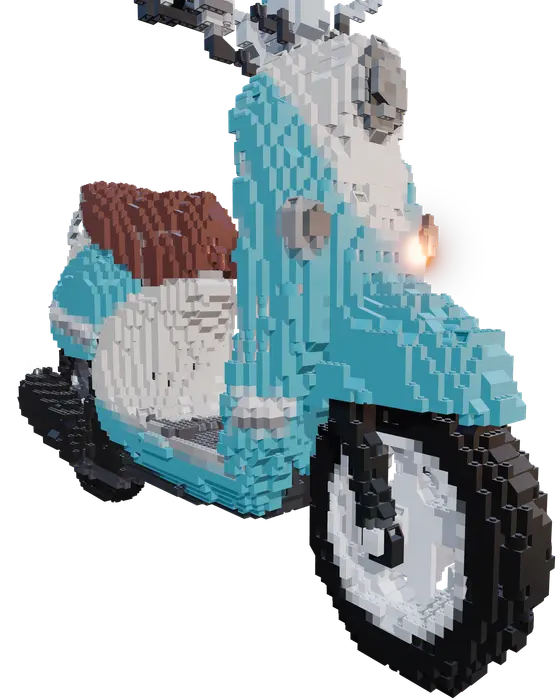
You can also drop in a GLB or OBJ model. Mosey voxelizes it and rebuilds it in bricks, which is how the scooter example on this page started. It's a quick way to test whether a character or object will work as a brick sculpture before you plan it properly.
Brick mosaic ideas
Portraits of partners and grandparents, pet portraits, album covers, team logos and pixel-art characters. Build one for real, print the render as a poster, or 3D-print the STL as a desk piece.
Brick mosaic FAQ
Is the brick mosaic maker free?
Making and exporting one is free, with no watermark: LDraw, STL, GLB, USDZ and standard PNG files. The default sculpted look uses one AI credit for the depth map (new accounts get 3). Switch depth off for a flat mosaic that costs nothing. Pro adds print-resolution PNGs and monthly credits.
Can I actually build the mosaic?
Yes, that's what the LDraw (.ldr) export is for. It gives the position and color of every piece. Open it in an LDraw-compatible app such as BrickLink Studio or LeoCAD to inspect the model and see which parts it uses, then order and build from that.
Which colors does it use?
Each region of your photo is matched to the closest color in the palette by perceptual (LAB) color distance. You can switch individual colors off to limit it to ones you own.
How big should my mosaic be?
Bigger tiles (fewer studs) suit logos and simple shapes. Faces need smaller tiles so the eyes and mouth survive, which means more pieces to build.
How many bricks will I need?
Every stud is one cell of the grid, so a 48×48 mosaic covers 2,304 studs. Mosey merges neighboring studs of similar color into larger bricks and plates, so the piece count is lower than that. Open the LDraw file in an LDraw-compatible app to see the exact parts used.
Is Mosey affiliated with any toy brick brand?
No. Mosey is an independent tool and is not affiliated with, sponsored by or endorsed by any toy brick manufacturer.
Can I leave out colors I don't own?
Yes. Every color in the palette can be switched off, and the mosaic re-matches using only the colors you keep.
Can I turn a 3D model into bricks?
Yes. Import a GLB or OBJ file and Mosey voxelizes it into brick pieces you can rotate and export, including as an LDraw file.
What is the difference between Shell and Solid?
Shell builds only the outer surface of a sculpted mosaic, so it uses fewer pieces. Solid fills every stack from the base up, which uses more pieces but gives a sturdier build.
Your photo stays on your device while you make and export a mosaic. It only leaves if you click Save (stored privately in your account) or use an optional AI tool. Privacy Policy
More mosaic ideas
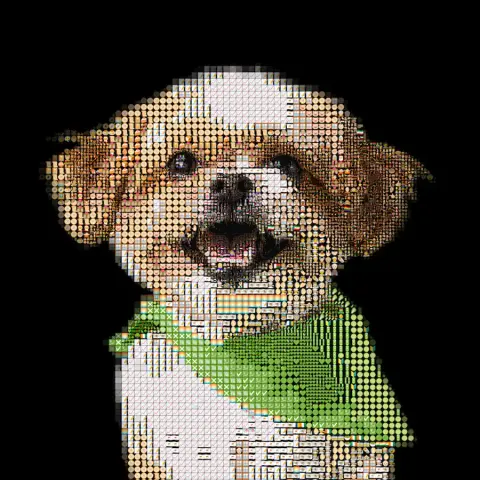
Pet portrait
Your dog, cat or rabbit rebuilt from emoji, bricks or their own photos, ready to print or build.
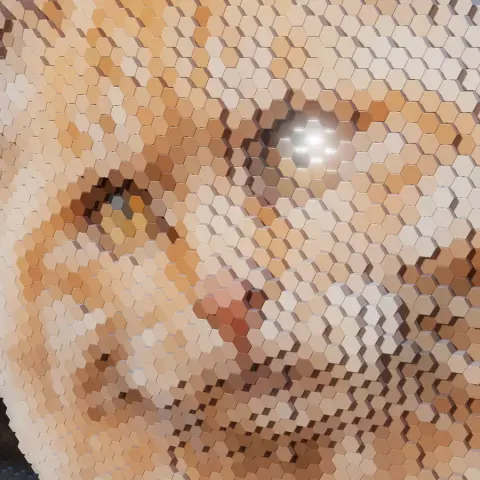
Photo to STL
AI depth raises every tile into a 3D relief, with an STL export for your printer.
Pixel art
Drag one slider from photo to chunky 8-bit, then add gaps, round dots or dithering.
More ideas: Emoji art · ASCII art · Photo mosaic · Anniversary & wedding · Memorial mosaic